New in WebRTC Client: multiple lines and live AI transcription
The new WebRTC Client adds multiple lines, live AI transcription, an AI assistant, voicebot monitoring and a queue overview — all in the browser.
Connect a browser-based WebRTC softphone to Asterisk for business calls from a compatible browser.
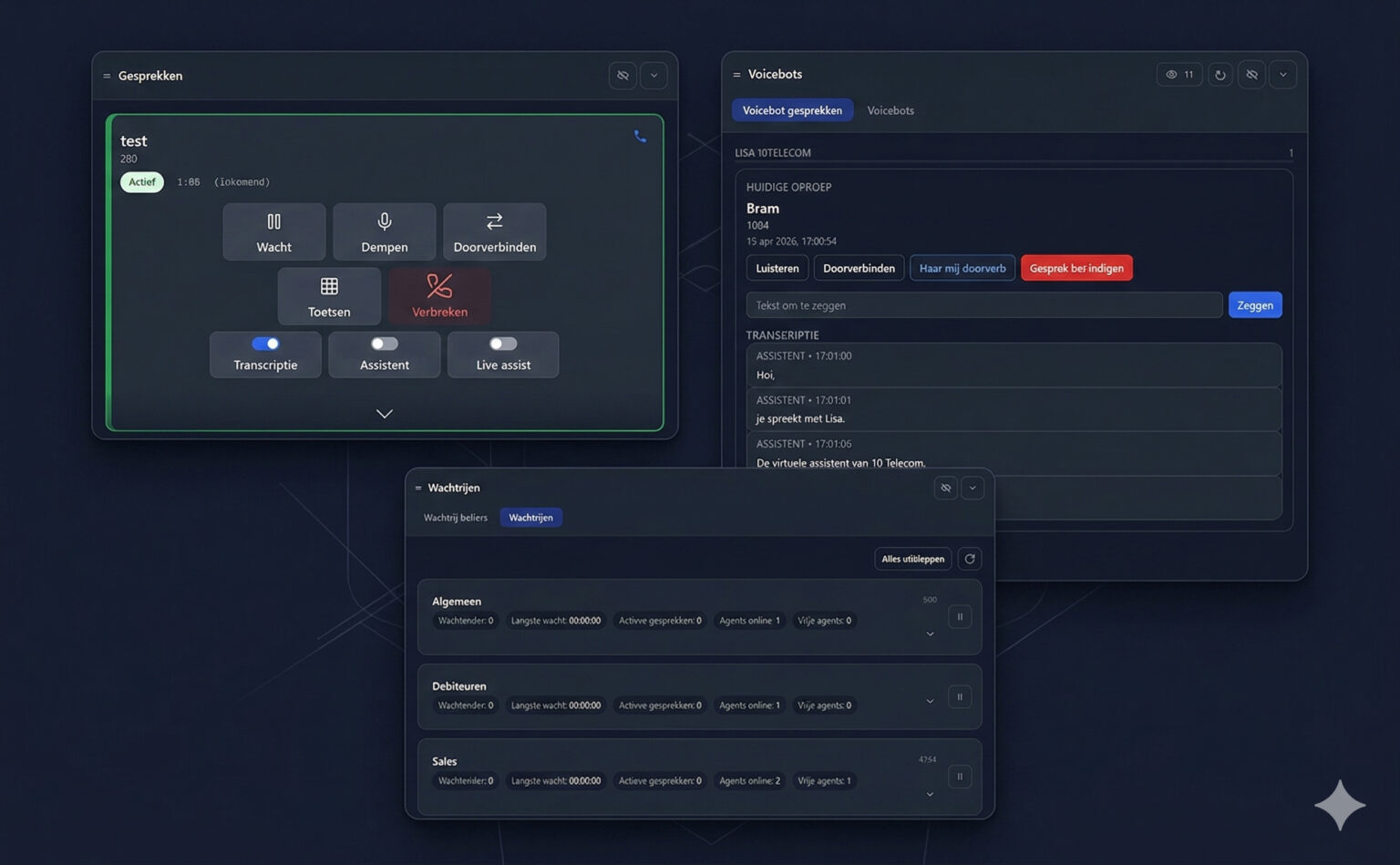
A WebRTC Asterisk softphone lets users make and receive calls in a compatible browser using an Asterisk phone system. WebRTC Client provides the browser dialer while Asterisk handles the configured extension and call routing.
Asterisk is an open-source PBX that can manage extensions and route calls. WebRTC Client connects to a suitably configured Asterisk system using SIP over WebSocket and uses WebRTC for browser audio. The browser interface gives users a way to work with their business extension without a separate desktop softphone application.
The connection requires compatible PBX settings and a network path between the client and the server. External calling also depends on the PBX's configured provider and routing. Consult the Asterisk guide for configuration guidance and the compatibility overview for supported systems.
Users need a compatible browser, a reliable network connection and a microphone and speaker or headset. They must grant microphone permission when prompted and select the correct audio devices. A quiet test call is a useful way to check both directions of audio before relying on the setup for daily work.
Remote users can work through their browser when the PBX and network are configured to allow their connection. Location alone does not guarantee connectivity: firewalls, network address translation and audio device settings can all affect a call.
If registration fails, review the credentials, server address and WebSocket configuration with the PBX administrator. If registration works but audio does not, check browser permissions, selected devices and network configuration. The STUN server guide provides related network guidance.
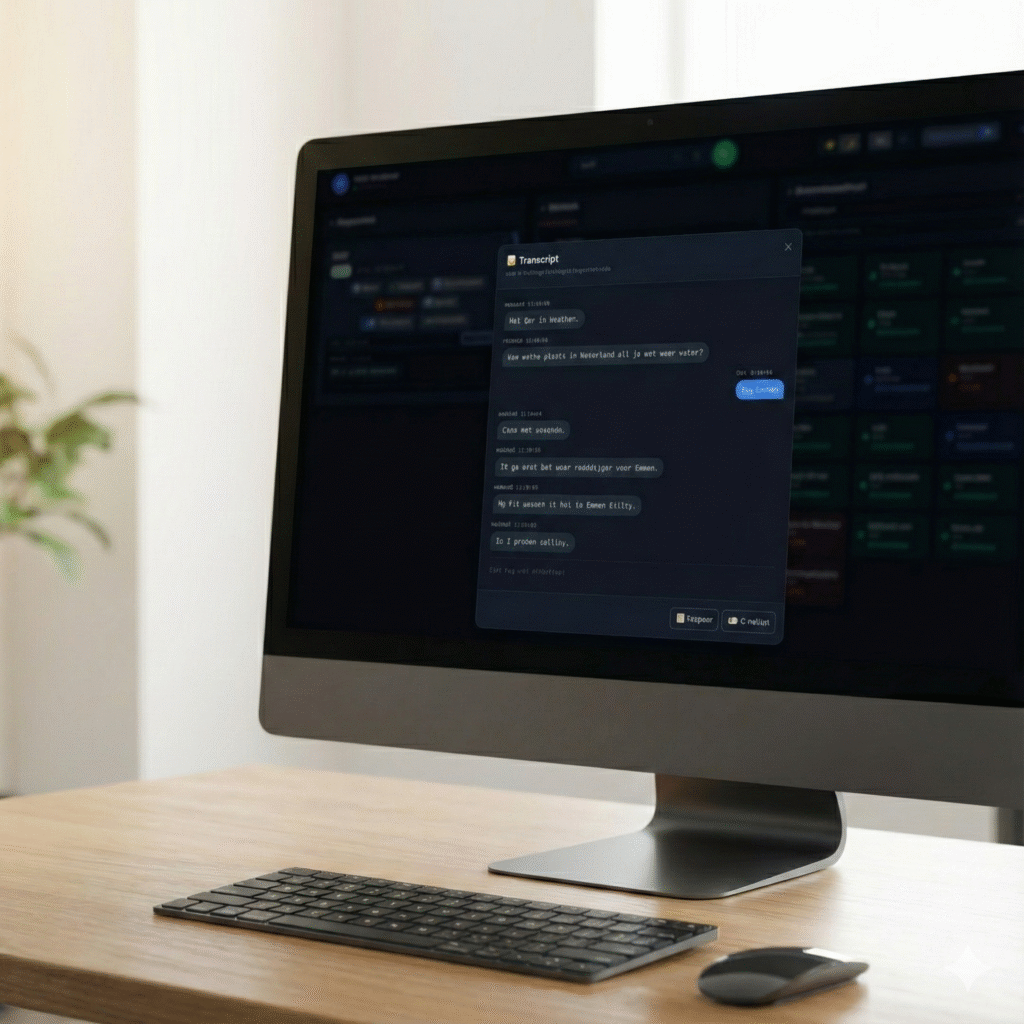
The new WebRTC Client adds multiple lines, live AI transcription, an AI assistant, voicebot monitoring and a queue overview — all in the browser.
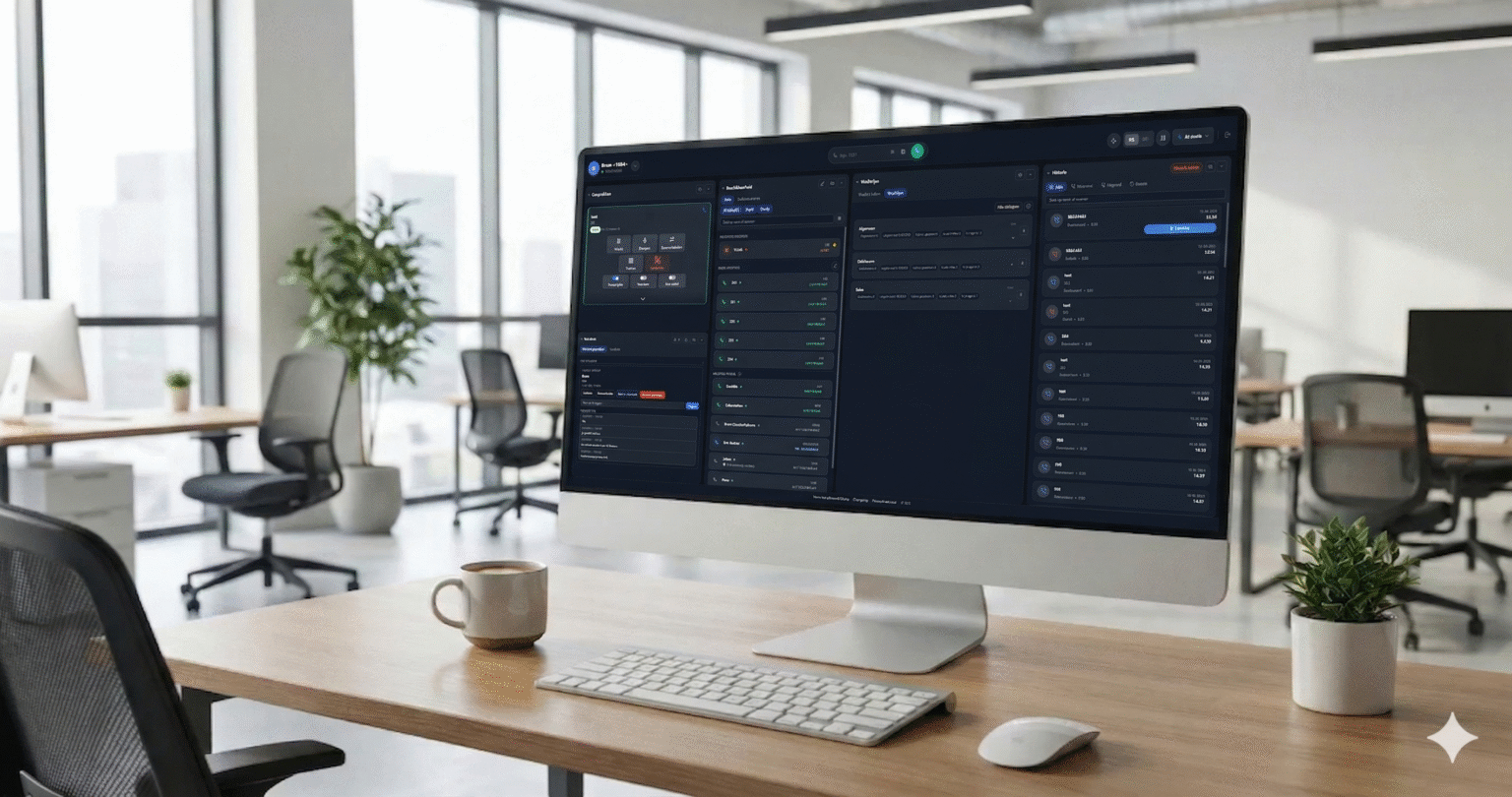
Compare the practical considerations of a browser softphone and a desktop application such as Bria.
Use the Click2Tel Chrome extension to send phone numbers from tel links to your WebRTC Client dialer.